Pay bills or people through the new Online and Mobile banking platform. This replaces what was formerly Online Bill Pay and Pop Money in the old online banking platform NetBranch.
NOTE: Enrollment via Online Banking must be done before “Add a Payee” will be visible in the Mobile App.
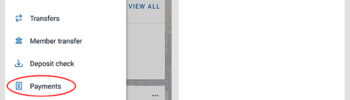
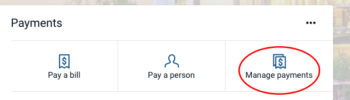
To enroll in Payments in Online Banking, select “Move Money,” then “Payments” and follow the prompts. (You can also select “Manage payments” from the Payments card on the dashboard.)
From the main menu, select “Payments.” (You can also select “Pay” in each account card on the dashboard.)
Click the “+” to the right of “Payees” and select whether the new payee is a company or a person to continue. For security, you’ll be prompted to enter your password.
To add a Company enter the Company’s information to add them to the Payments system.
To add a Person, enter the payee’s information and choose a “shared keyword.” This keyword must be shared with your payee before they can enter their account information and accept your transfer. After you submit this information, the payee will receive an email with instructions for setting up their account for receipt of the funds you are transferring to them. You will not be able to make a payment until the payee has activated their account.
From the main menu, select “Payments.” (You can also view scheduled payments in the payments card on the Dashboard.)
Select the payee and find the scheduled transaction under “Payment History.” Then choose the payment you’d like to edit
Select “Edit Payment” to make changes. From this screen, you also have the ability to delete payments in the upper right-hand corner
To pay either a bill or person in Online Banking, you can use the simple “Pay a bill” and “Pay a person” options on the Dashboard to set up payment information in the Payments system, or you can add them under “Manage Payments” and follow the prompts.
For FAQs and video tutorials, select the Help button once you enter Manage Payments.
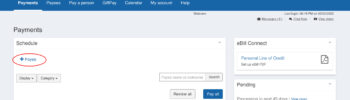
Select +Payee to add the payee to the Payments system.
To Pay a Person, you can use the simple “Pay a person” option on the Dashboard to send payment information to your payee via email, or you can set up “Pay a person” under “Manage Payments” to send by the following methods:
From the Dashboard
To use “Pay a person” on the Dashboard, enter the payee’s information and choose a “shared keyword.” This keyword must be shared with your payee before they can enter their account information and accept your transfer. After you submit this information, the payee will receive an email with instructions for setting up their account for receipt of the funds you are transferring to them. You will not be able to make a payment until the payee has activated their account.
Use “Pay a person” under “Manage Payments” to send your payment via text or email, direct deposit or by check. Select your preferred payment method and complete the required payment information.
By clicking “Accept all,” you agree Greenville Federal Credit Union can store cookies on your device and disclose information in accordance with our Cookie Policy.